
Success and Error Pages
Success and Error Pages
Challenge displays custom success and error pages during the verification process. This guide explains how these pages work and what information they display.
Success Page
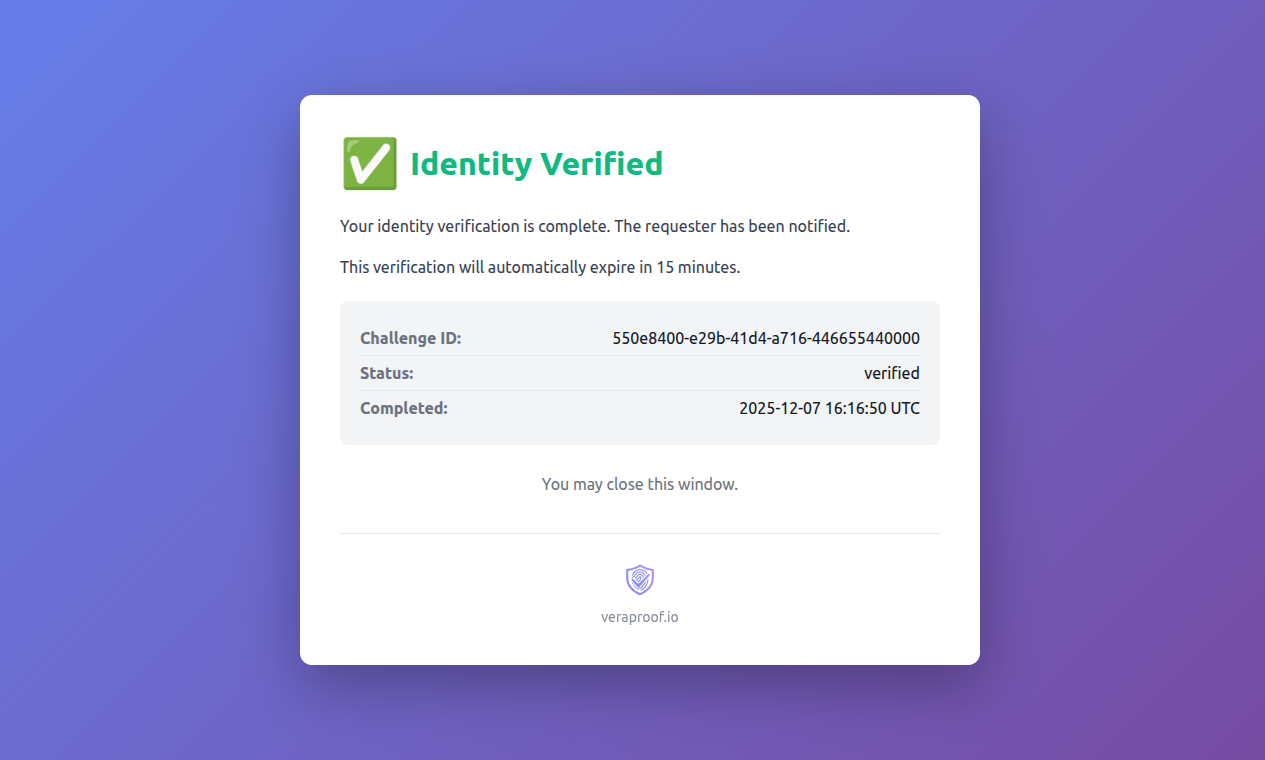
When a user successfully completes identity verification, they see a success page confirming their identity has been verified.
What Users See
- Success Message: “Identity Verified” with a checkmark icon
- Challenge Information: Challenge ID, status, and completion timestamp
- Expiration Notice: Information that the verification expires in 15 minutes
- Device Fingerprinting: Status of device information collection
- Veraproof Logo: Veraproof logo and link displayed at the bottom of the page
Device Fingerprinting
Challenge collects device fingerprinting information:
- Browser type and version
- Operating system
- Screen resolution
- Timezone
- IP address
- Geolocation
- User agent string
This information is collected in the background and sent to Challenge for security analysis. The page shows a loading indicator while fingerprinting is in progress.
Automatic Notification
Once device fingerprinting completes (or times out after 10 seconds), Challenge automatically sends a notification to the requester that the challenge has been verified.
Error Pages
When a challenge fails or encounters an error, users see an error page with details about what went wrong.
Common Error Scenarios
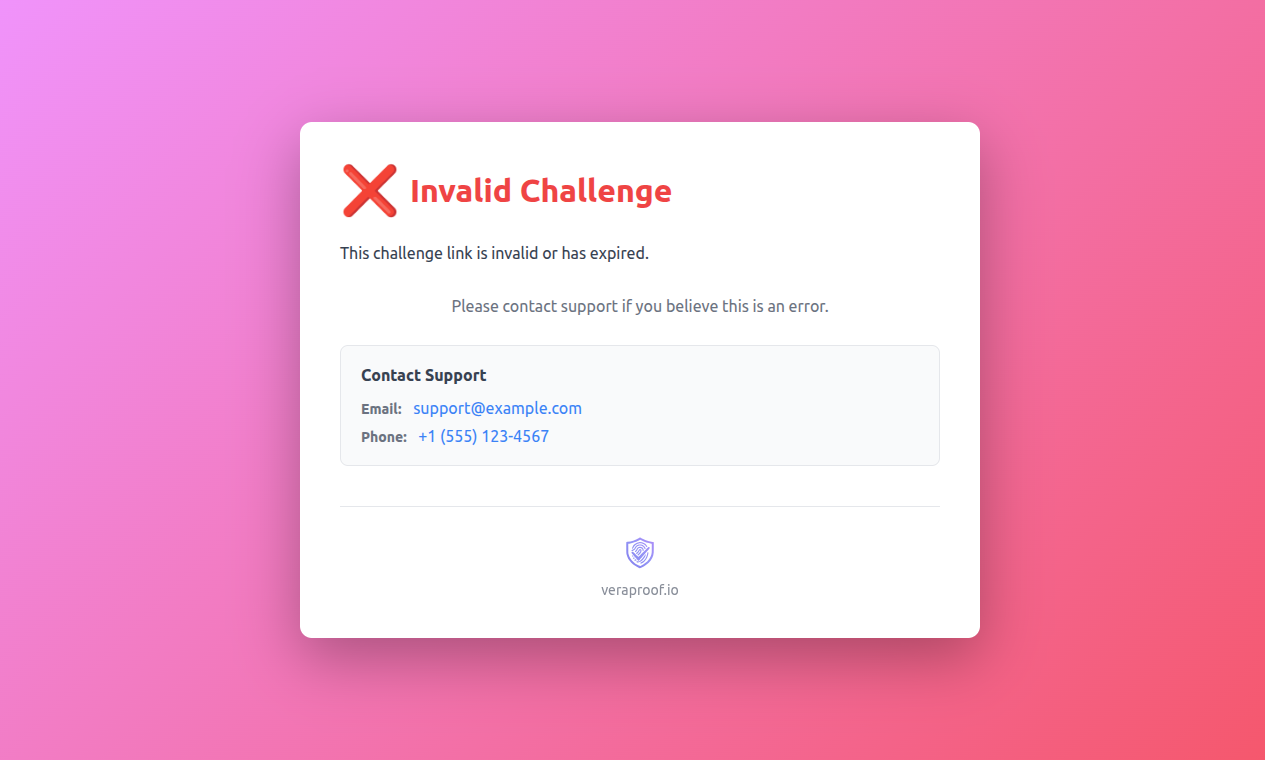
Invalid Challenge:
- Challenge link is invalid or expired
- Challenge has already been completed
- Challenge ID doesn’t exist
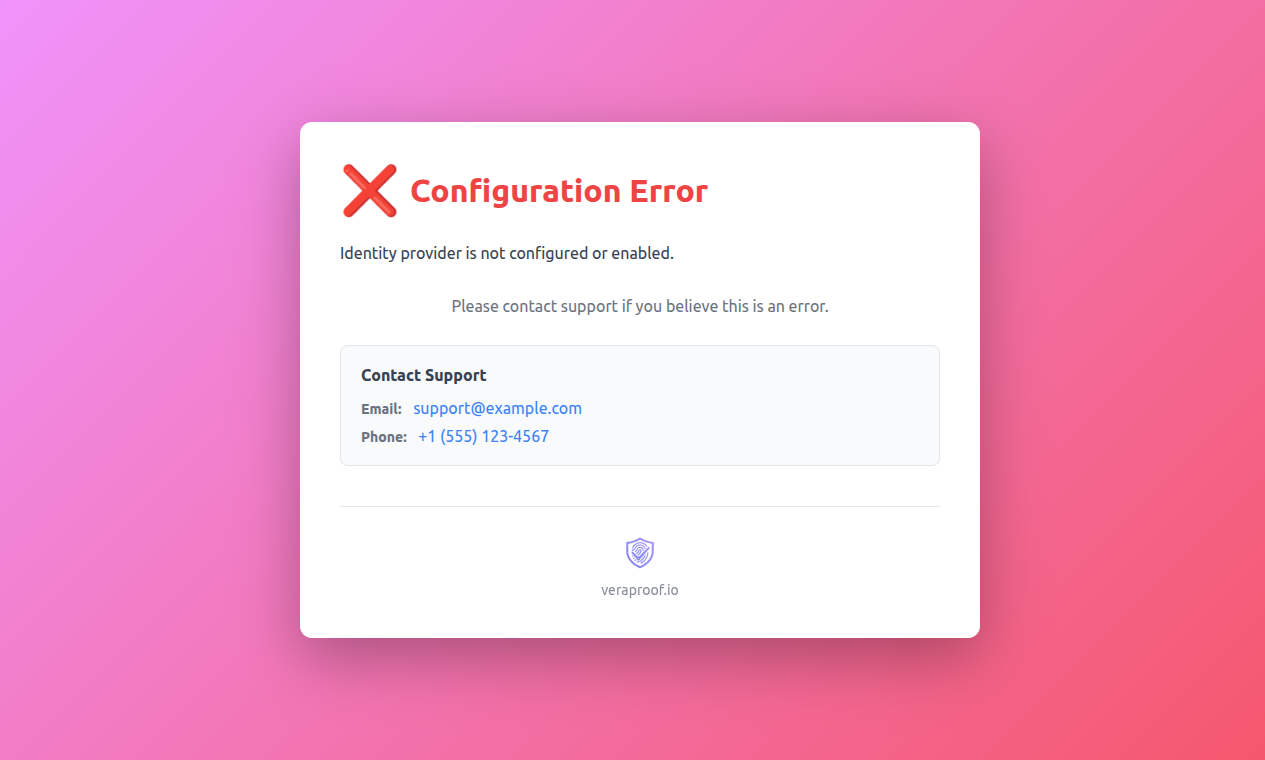
Configuration Error:
- IdP (SAML/OIDC) is not configured
- IdP configuration is incomplete
- Metadata URL is invalid or inaccessible
Authentication Error:
- IdP authentication failed
- User denied authorization
- Token validation failed
SAML Assertion Invalid:
- SAML assertion validation failed
- SAML response signature is invalid
- SAML assertion is malformed or expired

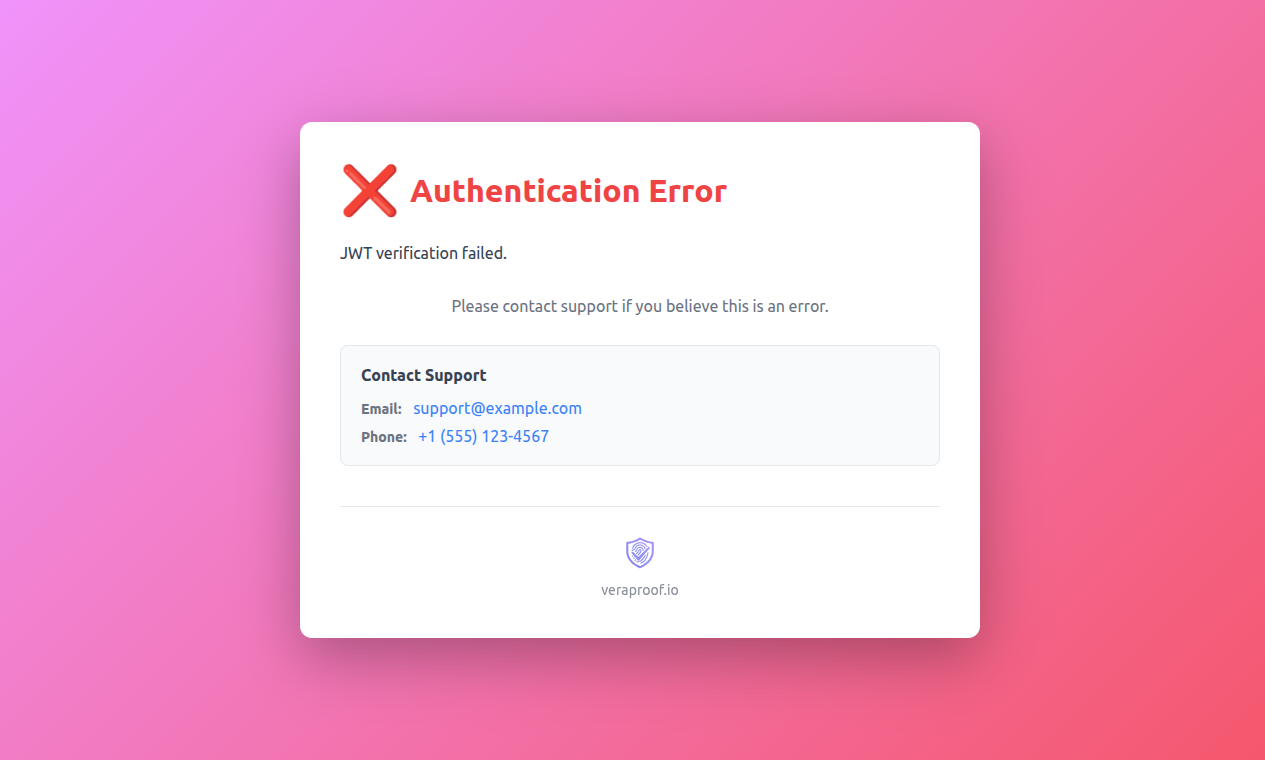
OIDC/JWT Verification Failed:
- OIDC token validation failed
- JWT signature verification failed
- Token is expired or invalid
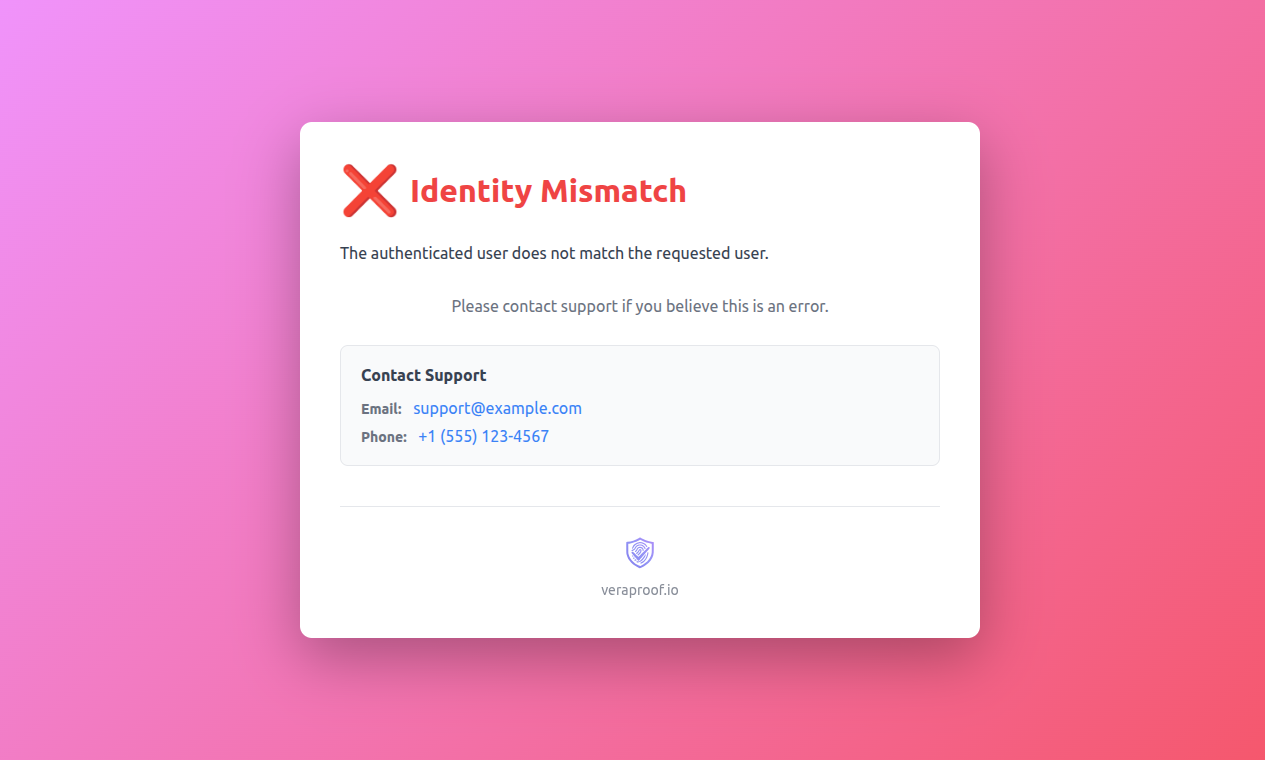
Identity Mismatch:
- The authenticated user’s email or identifier does not match the challenge target user
- This occurs when a different user authenticates than the one who was challenged
- The challenge fails to prevent unauthorized verification
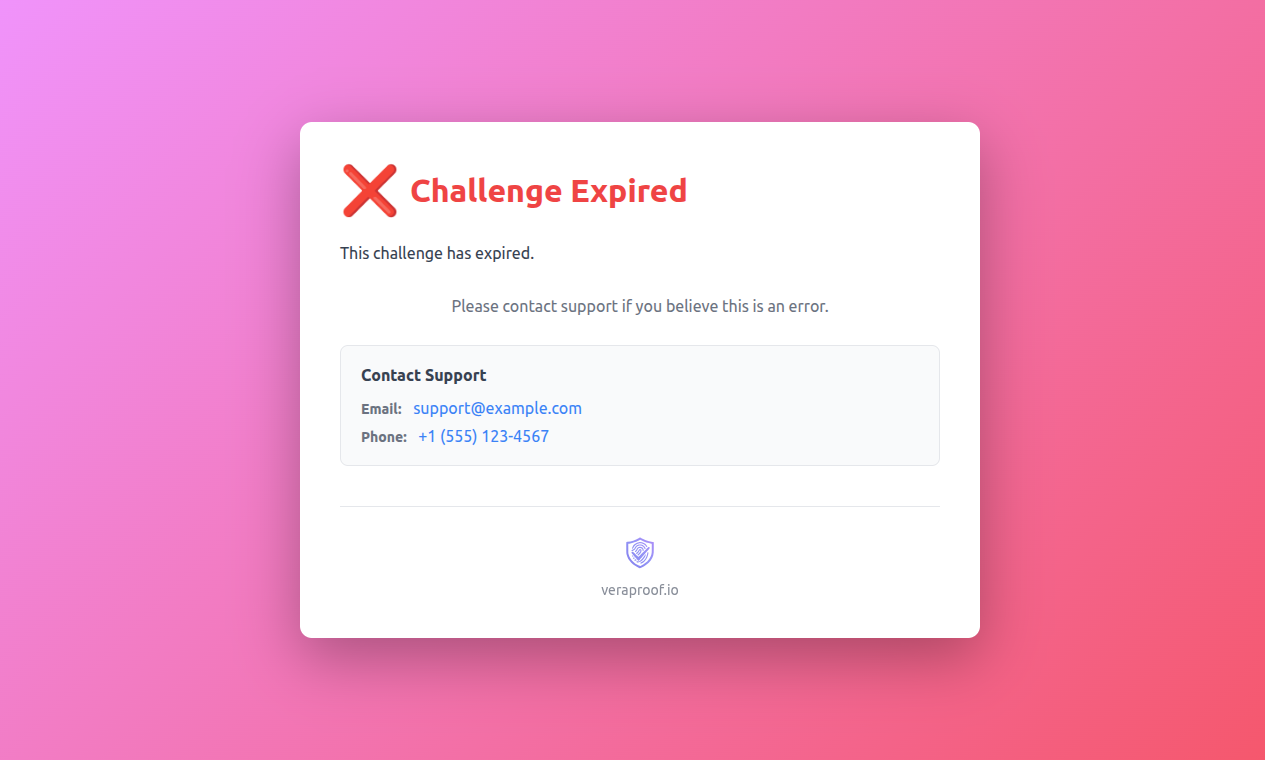
Expired Challenge:
- Challenge has expired (challenges expire after 15 minutes)
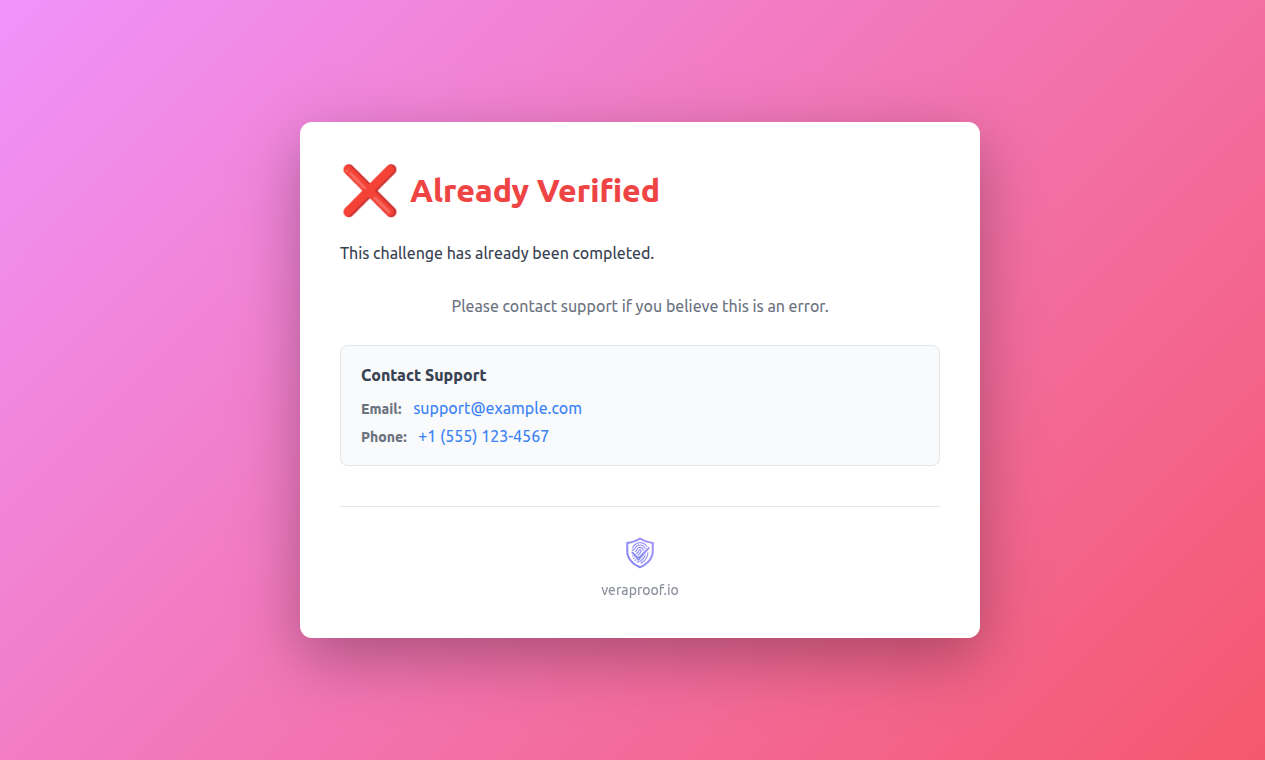
Already Verified:
- Challenge has already been successfully verified
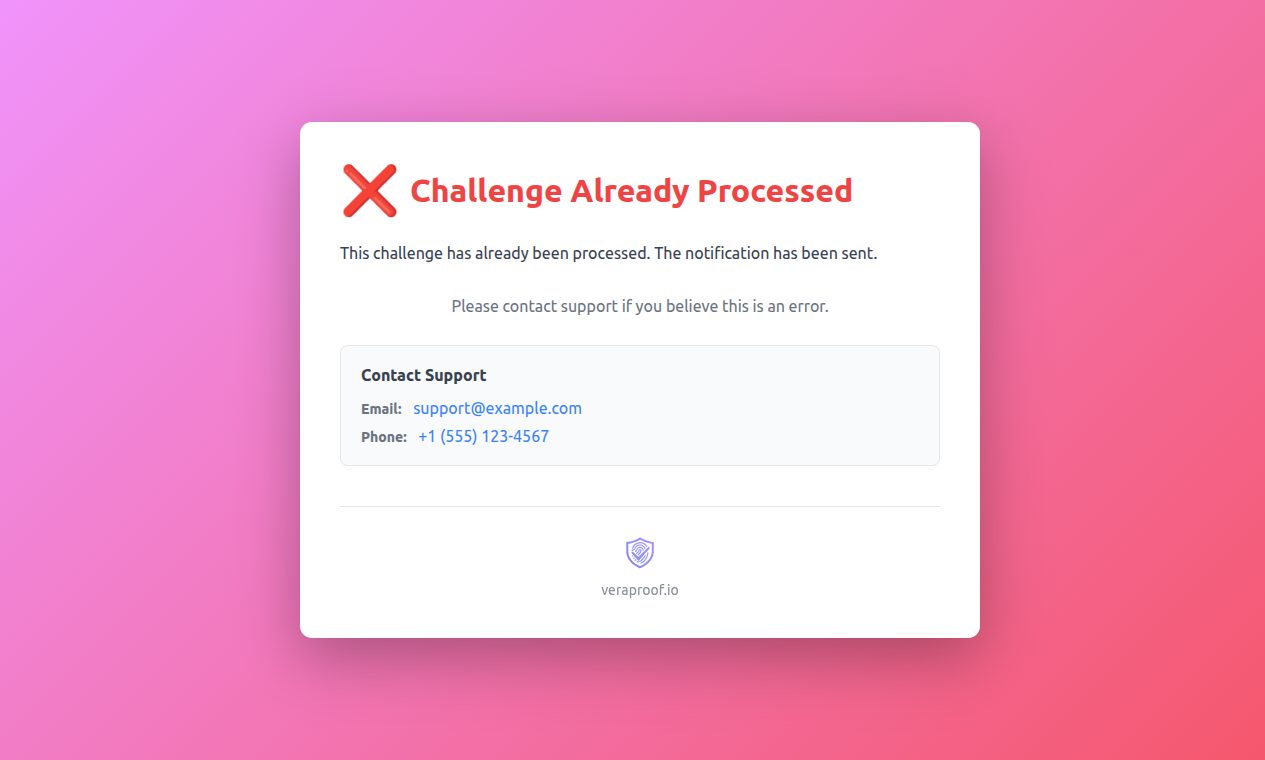
Already Processed:
- Challenge has already been processed and cannot be completed again
Not Verified:
- Challenge has not successfully verified yet (pending user SSO)
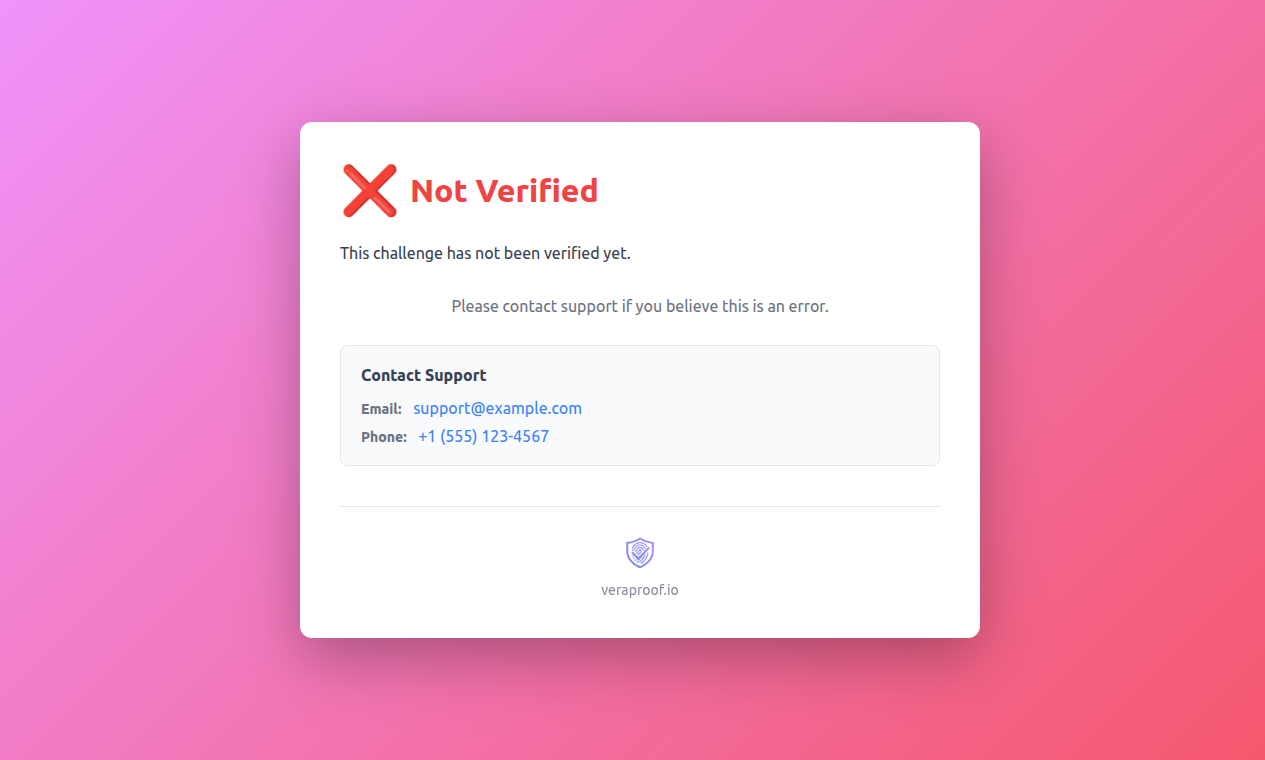
What Users See
- Error Title: Brief description of the error (e.g., “Invalid Challenge”, “Configuration Error”, “Identity Mismatch”)
- Error Message: Detailed explanation of what went wrong
- Support Contacts: If configured, displays support email, phone, Slack channel, and ticketing portal
- Veraproof Logo: Veraproof logo and link displayed at the bottom of the page
Support Contact Display
If you’ve configured support contacts in the admin console (see Support Configuration), they will appear in a dedicated section on error pages:
Contact Support
Email: support@example.comPhone: +1 (555) 123-4567Slack: #supportTicketing Portal: Open Support Portal
This helps users get assistance when they encounter issues.
Best Practices
For Administrators
- Configure Support Contacts: Ensure support information is configured so users can get help
- Monitor Error Rates: Track common error scenarios to identify configuration issues
- Test Challenges: Periodically test challenges to ensure error pages display correctly
For Users
- Complete Verification Promptly: Challenges expire after 15 minutes
- Contact Support: If you encounter errors, use the support contact information provided
- Check Email: Ensure the email address matches your IdP account
- Identity Mismatch Errors: If you see an “Identity Mismatch” error, verify you’re logging in with the correct account that matches the challenge target user email
Troubleshooting
Success Page Not Showing
- Verify the challenge was completed successfully
- Check that device fingerprinting completed (may take a few seconds)
- Ensure JavaScript is enabled in the browser
Error Page Not Showing Support Contacts
- Verify support configuration is set in the admin console
- Check that you have Owner or Admin privileges
- Ensure at least one support field is configured
Device Fingerprinting Fails
- This is not critical - the challenge is still marked as verified
- The notification will be sent after a 10-second timeout
- Some information may be missing from the fingerprint
Identity Mismatch Error
If you see an “Identity Mismatch” error:
- Verify Account: Ensure you’re logging in with the correct IdP account that matches the challenge target user email
- Check Email: The email address in your IdP account must exactly match the email address used when the challenge was created
- Contact Requester: If you believe this is an error, contact the person or system that created the challenge to verify the target email address
- Contact Support: Use the support contact information displayed on the error page if you need assistance
Support
For issues or questions about success and error pages, contact support@veraproof.io.